How to Set Up a Teleprompter at Home: A Complete Guide for Video Creators
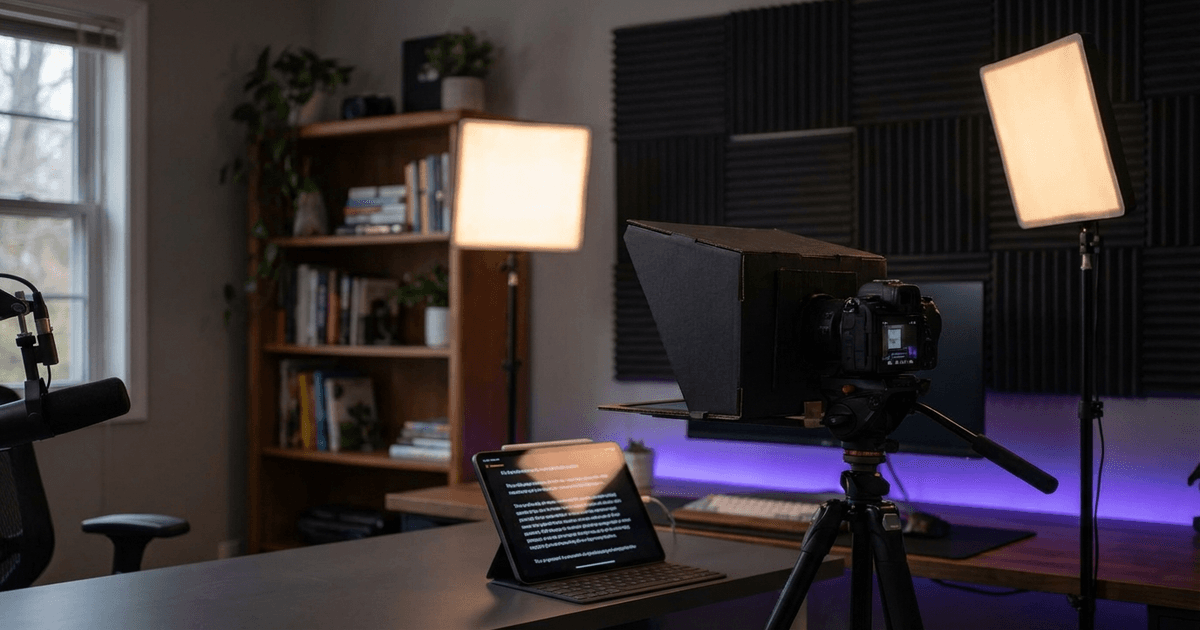
You've written a script. You know what you want to say. But the moment you hit record, your eyes dart between notes and the lens, and suddenly you sound like you're reading a hostage statement.
A teleprompter fixes that. It puts your words close to the camera lens so you can deliver your script while maintaining eye contact with your audience.
The good news: you don't need a broadcast studio to use one. Here's how to set up a teleprompter at home, whether you're filming YouTube videos, recording courses, or presenting on webcam.
What a teleprompter actually does
A teleprompter displays scrolling text near your camera lens so you can read your script while looking directly at the viewer. In broadcast TV, this is done with a beam-splitter mirror mounted in front of the camera. At home, the setup is simpler -- and you've got several options depending on your budget and filming style.
The goal is always the same: reduce the distance between where your eyes read and where the camera lens sits.
Option 1: hardware beam-splitter rig
Best for: Dedicated filming setups, DSLR/mirrorless cameras, creators who film frequently
What it is: A glass panel sits at a 45-degree angle in front of your camera lens. A tablet or monitor below it reflects text onto the glass. You read the text while the camera sees straight through.
How to set it up
- Mount your camera on a tripod at your usual filming height
- Attach the teleprompter hood in front of the lens (most models clamp to standard tripod plates)
- Place your tablet or phone face-up in the cradle below the glass
- Load your script into a teleprompter app on the tablet
- Adjust the glass angle until text is clearly reflected and readable
- Set your scroll speed -- start slower than you think you need
- Check the camera feed -- make sure the teleprompter housing isn't visible in frame
Tips
- Budget models (Desview T3, Neewer X12) start around $50-80 and work well for most creators
- Use a matte screen protector on your tablet to reduce glare bleed
- The text appears mirrored on the tablet -- your teleprompter app should have a mirror/flip mode
- Clean the beam-splitter glass before every shoot; fingerprints show up on camera
Pros and cons
| Pros | Cons |
|---|---|
| Text appears directly over the lens -- best eye contact | Requires dedicated hardware |
| Works with any camera | Adds setup time before every shoot |
| Professional-grade results | Tablet screen brightness can be an issue in bright rooms |
| No software dependency | Not portable for location shoots |
Option 2: tablet or phone on a stand
Best for: Creators on a budget, occasional use, simple setups
What it is: Tape or mount your phone/tablet right next to (or just below/above) your camera lens. You read the script from the screen while looking approximately toward the camera.
How to set it up
- Position your camera on a tripod
- Mount your phone or tablet as close to the lens as physically possible -- use a flex arm, clamp mount, or even gaffer tape
- Load your script into any teleprompter app
- Increase font size dramatically -- you should be able to read each line without moving your eyes much
- Set only 3-5 words per line so your gaze stays centered
- Frame your shot and check that the phone/tablet isn't visible
Tips
- The closer the screen is to the lens, the less obvious your eye movement will be
- For webcam setups, position your script window at the very top of your monitor, right below the webcam
- Use a dark background with light text -- it's easier on your eyes under studio lighting
- A flex-arm phone holder (around $15) is the cheapest effective teleprompter rig you can build
Pros and cons
| Pros | Cons |
|---|---|
| Almost free -- uses gear you already own | Slight eye movement visible if screen is far from lens |
| Portable -- works anywhere | No mirror reflection, so angle is never perfect |
| Quick to set up | Small screen = fewer visible words |
| Great for webcam/laptop filming | Not ideal for wide shots where eye direction is more visible |
Option 3: monitor beside the camera
Best for: Long-form recording, dual-monitor setups, presenters who use notes more than full scripts
What it is: A second monitor or laptop screen sits just behind or beside your camera, displaying your script. This is less precise than a beam-splitter but works well if you use bullet points rather than word-for-word scripts.
How to set it up
- Place your camera centered at eye height
- Position a monitor directly behind the camera, or just above/below it
- Open your script in any text editor, teleprompter app, or presentation software
- Use large font (28pt minimum) and high contrast (white text on black background)
- Scroll manually with a mouse, keyboard shortcut, or remote clicker
Tips
- This works best when you're using bullet points rather than reading every word -- your eyes moving to a side monitor isn't as obvious if you're speaking naturally
- A wireless presentation clicker ($10-20) lets you advance bullets without touching your keyboard
- If you're using two monitors, put the script on the one closer to the camera
Pros and cons
| Pros | Cons |
|---|---|
| Uses equipment you already have | Noticeable eye shift if monitor is far from lens |
| Great for bullet-point delivery | Not suitable for word-for-word reading |
| Easy dual-monitor workflow | Requires manual scrolling or a clicker |
| No extra hardware needed | Viewers may notice you glancing to the side |
Option 4: browser-based teleprompter
Best for: Webcam creators, course recordings, Zoom/Meet presentations, anyone who wants zero hardware
What it is: A web app runs your teleprompter directly in your browser. Your script scrolls on the same screen your webcam is mounted on -- meaning the text is as close to the lens as it can physically get on a laptop.
How to set it up
- Open the teleprompter app in your browser
- Paste or import your script
- Position the text window at the top of your screen, directly below your webcam
- Adjust font size until you can read comfortably without squinting
- Start recording -- the script scrolls as you speak
Some browser-based teleprompters (like BirdCue) scroll with your voice instead of on a timer. Instead of the text moving at a fixed speed, it follows your actual speaking pace. Pause to collect your thoughts, and the text waits. Speed up, and it keeps pace. (If you're curious why fixed-speed scrolling causes problems, we wrote about that in why timer-based teleprompters are killing your takes.)
Tips
- For laptops: the webcam is at the top of the screen, so put the script text as high as possible
- For external webcams: mount the webcam at the top of your monitor where the text displays
- Close all other tabs and notifications -- a browser-based prompter works best full-screen or near-full-screen
- If your teleprompter supports bullet-point mode, use it. Reading bullet points feels more natural than reading full paragraphs
Pros and cons
| Pros | Cons |
|---|---|
| No hardware to buy or set up | Requires a laptop/desktop with a webcam |
| Text is closest possible to the webcam lens | Not ideal for DSLR setups (camera is separate from screen) |
| Works anywhere with a browser | Depends on internet connection for web-based tools |
| Some tools offer voice-paced scrolling | Screen real estate is shared with the prompter |
| Fastest setup -- open browser and go |
Universal setup tips (for any teleprompter type)
No matter which option you pick, these tips will improve your delivery:
1. Font size: bigger than you think
If you're squinting or your eyes are scanning back and forth, the font is too small. Increase it until you can read each line with barely any eye movement. Most creators underestimate how large the text should be.
2. Fewer words per line
Narrow your text column or reduce words per line to 4-6. This keeps your eyes centered instead of sweeping left to right. Your viewers won't see eye movement if your gaze stays in a small area.
3. Write for your mouth, not your eyes
Read your script out loud before filming. If a sentence sounds awkward when spoken, rewrite it. Written English and spoken English are different -- your script should sound like you talking, not you writing an essay. (We go deeper on this in our guide to reading a script on camera without sounding robotic.)
4. Practice the first and last lines from memory
Memorize your opening line and your closing line for each segment. Start strong with direct eye contact, lean on the teleprompter for the middle, and finish strong. Your viewers remember how you started and ended.
5. Use bullet points over full paragraphs
Full paragraphs make you read word-for-word. Bullet points give you structure but let your personality come through. Write your key points as bullets, then speak naturally around them.
6. Distance matters
Sit at a comfortable reading distance from the screen. Too far and you squint. Too close and you look unfocused. For laptop webcams, normal sitting distance (18-24 inches) usually works well.
7. Lighting your face, not the screen
If your teleprompter screen is the brightest thing in the room, your eyes will reflect the scrolling text. Light your face properly so the screen reflection isn't visible. A key light slightly above and to one side of the camera handles this.
Which setup is right for you?
Here's a quick decision guide:
| If you... | Use this |
|---|---|
| Film with a DSLR/mirrorless on a tripod | Hardware beam-splitter |
| Want the cheapest possible setup | Phone on a flex arm next to the lens |
| Use bullet points more than full scripts | Monitor beside camera + clicker |
| Film with a webcam or laptop camera | Browser-based teleprompter |
| Record courses or Zoom presentations | Browser-based teleprompter |
| Need to set up in under 2 minutes | Browser-based teleprompter |
| Film in different locations | Browser-based (most portable) or phone stand |
Getting started
The best teleprompter setup is the one you'll actually use. Start simple:
- If you've got a webcam or laptop camera, try a browser-based teleprompter first. Zero cost, zero setup time.
- If you film with a standalone camera, start with a phone mounted next to the lens. Upgrade to a beam-splitter if you film frequently enough to justify the hardware.
- Whichever option you pick, spend 10 minutes practicing before your first real shoot. Read through your script once with the teleprompter running so you can adjust speed, font size, and position.
The teleprompter isn't the performance -- you are. The tool just removes the friction so you can focus on what matters: talking to your audience like a human being.
FAQ
How much does a teleprompter cost? It depends on the type. Browser-based teleprompters like BirdCue are free to start. A phone flex-arm mount costs $10-15. Budget hardware beam-splitters start around $50-80. Professional broadcast rigs run $300+.
Can I use my phone as a teleprompter? Yes. Mount your phone as close to your camera lens as possible using a flex arm or clamp. Use any teleprompter app to scroll your script. It's not as precise as a beam-splitter, but it works surprisingly well for YouTube and social media content.
What's the best teleprompter for webcam recording? A browser-based teleprompter is ideal for webcam setups because the text displays on the same screen your webcam is mounted on. This keeps your eyes as close to the lens as possible. BirdCue is a browser-based option that scrolls with your voice rather than on a timer.
Do teleprompters make you sound robotic? Only if you read word-for-word from a fully scripted text. Use bullet points instead of full paragraphs, practice out loud before filming, and write the way you speak. A teleprompter is a guide, not a script you have to follow verbatim.
How do I stop my eyes from looking like I'm reading? Three things: (1) increase font size so your eyes barely need to move, (2) reduce words per line so your gaze stays centered, and (3) position the text as close to the camera lens as possible. The goal is to minimize visible eye movement.
What scroll speed should I use? Start slower than you think. Most creators set the speed too fast and end up rushing to keep up with the text. If your teleprompter supports voice-paced scrolling, use it -- the text follows your pace instead of forcing you to match a timer.