Best Teleprompter Setup for Course Creators
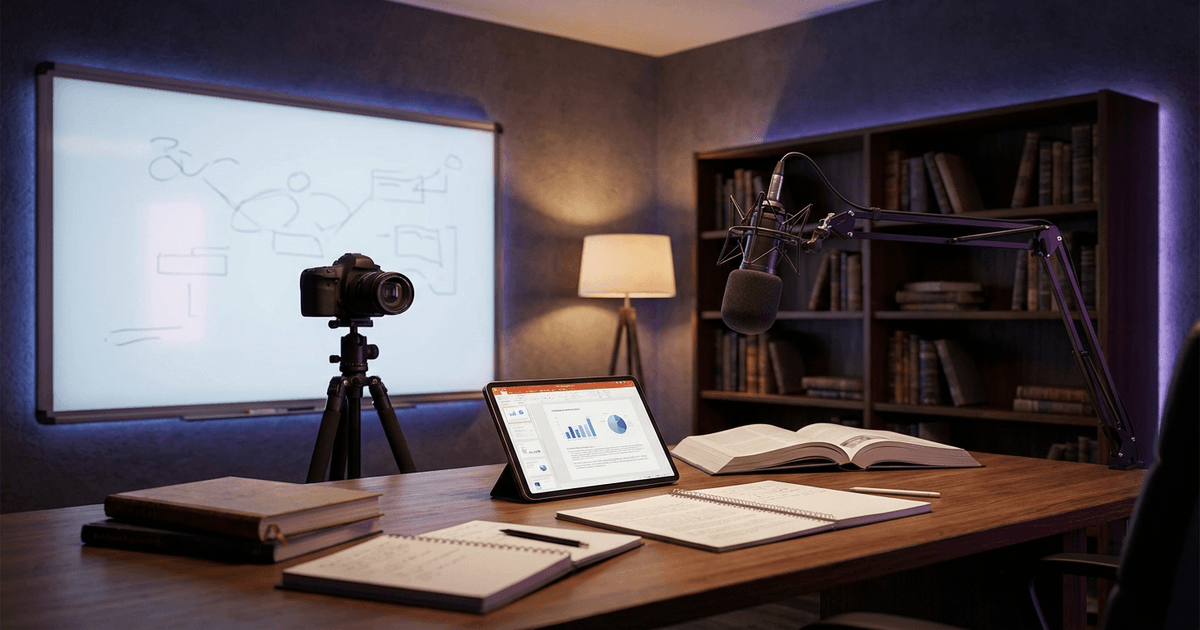
You've planned twelve modules. Your slide deck is ready. You've blocked out the whole afternoon to record.
Two hours later, you've finished module one. Half of it is unusable because you kept losing your place, restarting sentences, and trailing off mid-thought. The other half sounds like you're reading a legal document out loud.
Course creators face a specific version of the filming problem: you need to deliver structured educational content, often for hours at a time, while sounding like you actually care about the subject. A teleprompter for course creators needs to handle that differently than one built for 60-second Instagram reels.
This guide covers how to pick the right type, set it up for long recording sessions, and keep your delivery natural across a full course.
Why course creators need a different approach
Most teleprompter advice targets short-form creators: YouTubers filming 8-minute videos, social media creators doing 60-second takes. Course creators are different:
- Long recording sessions. You might film 3-5 lessons in one sitting. Fatigue is real.
- Dense content. You're teaching, not entertaining. Missing a step or skipping a concept means reshooting.
- Consistency matters. Lesson 1 and lesson 12 need to feel like the same course, even if you filmed them weeks apart.
- Slides and screen recording. Many course creators film talking head alongside slides or screencasts. The teleprompter needs to work within that setup.
- Less editing budget. Most course creators don't have a dedicated editor. Fewer takes means less time in post.
A teleprompter helps with all of these, if you set it up right.
Choosing the right teleprompter type
Four main options. Each works differently for course creation. (For a broader comparison of teleprompter software, see our best teleprompter apps roundup.)
Option 1: Hardware beam-splitter
Best for: Course creators with a dedicated filming space and a DSLR/mirrorless camera.
A glass panel reflects your script in front of the camera lens. You read while maintaining direct eye contact.
Course creator verdict: Great if you film frequently and have a permanent setup. Overkill if you film a course once or twice a year. The hardware stays on your camera, so it works less well if you also use that camera for other things.
Budget: $60-150 for a good quality rig (Desview T3, Neewer X12, Parrot).
Option 2: Tablet or phone on a stand
Best for: Course creators who film at a desk with a webcam or laptop camera.
Mount your phone or tablet on an adjustable arm just below or beside your camera. Run a teleprompter app on it.
Course creator verdict: Simple and cheap. The downside is your eyes shift slightly off-camera when reading. For short-form this is noticeable. For course content, where students expect a more relaxed teaching style, it's usually fine, especially if the device is close to the lens.
Budget: $15-30 for a phone/tablet arm mount. Free teleprompter apps available.
Option 3: Monitor beside the camera
Best for: Presenters who are comfortable with a slight eye-line offset, or who pair talking head with slides.
Position a monitor just to the side of your camera with your script on it. Some course creators put their slide notes here instead of a full script.
Course creator verdict: Practical for course creators who switch between talking head and screen recording. You can keep your lesson outline visible without looking at a separate device. The trade-off is that you're clearly looking slightly off-camera.
Budget: Use an existing monitor. $0 extra.
Option 4: Browser-based teleprompter
Best for: Course creators who film with a webcam or laptop camera and want the simplest possible setup.
A browser-based teleprompter runs on the same screen as your recording software. No extra hardware, no extra devices. Some tools scroll at a fixed speed. Others, like BirdCue, track your voice and scroll with your natural speaking pace -- which matters when you're explaining something complex and need to slow down, or when you pick up speed through familiar material.
Course creator verdict: Lowest friction. No hardware to buy or set up. Especially useful for webcam setups where the camera is already at the top of your screen. You can have your script scrolling in one window while your recording software runs in another.
Budget: Free to low-cost. Most browser-based tools have free tiers.
Setting up your teleprompter for long sessions
You've picked your teleprompter type. Now make it work for multi-lesson recording days. (If you're new to teleprompters in general, our home teleprompter setup guide covers the basics.)
1. Script in sections, not one long document
Break your script into lesson-sized chunks. Loading a 10,000-word script into a teleprompter is overwhelming and makes it harder to restart if you stumble.
Create a separate script for each lesson or module. Keep each one self-contained. If you need to reshoot lesson 7 next week, you should be able to load just that script without scrolling through six lessons of content.
2. Use bullet points for teaching, full script for intros and transitions
Course creators don't need to script every word. You know your subject. What you need is structure.
- Script your lesson intros and transitions word-for-word (these set the tone and keep things professional)
- Use bullet points for the teaching sections (keeps your delivery natural and conversational)
- Script your lesson closings (summarize, tease the next lesson, call to action)
This hybrid approach sounds more natural than reading every word, and it keeps you on track through dense material.
3. Increase font size more than you think
For long sessions, eye strain is real. If you're squinting at your teleprompter by lesson 4, your delivery will suffer.
Set your font size so you can read comfortably from your normal filming position. Then increase it one more step. Your eyes should barely need to move to read each line. This reduces fatigue and makes your eye movement less noticeable to the camera.
4. Match scroll speed to teaching pace
Fixed-speed teleprompters create a problem for educators. You slow down when explaining a complex concept. You speed up when recapping something simple. A teleprompter that scrolls at one pace forces you to match the machine instead of teaching naturally.
If your teleprompter has adjustable speed, practice setting it for your average pace and use a foot pedal or remote to adjust on the fly. If your tool supports voice-paced scrolling, even better. It follows your natural rhythm so you can teach at whatever speed the content demands.
5. Build in breaks between lessons
Don't try to record your entire course in one marathon session. Even with a teleprompter keeping you on script, your energy drops, your voice gets tired, and your delivery goes flat.
Record 2-3 lessons, then take a 10-minute break. Stand up, drink water, review your notes for the next section. Your students will notice if lesson 1 sounds enthusiastic and lesson 8 sounds like you want to go home.
6. Do a technical check before every session
Before you hit record:
- Verify your teleprompter text is visible and readable from your filming position
- Check that the script loaded correctly and is the right lesson
- Record 30 seconds of test footage to confirm audio, framing, and that the teleprompter isn't visible in frame
- Make sure your recording software is actually recording (the most common course creation mistake)
Three common setups for course creators
Setup A: Webcam + browser teleprompter
Who it's for: Course creators filming talking head on a laptop or desktop with a webcam.
- Position your webcam at eye level (stack books or use a small tripod if needed)
- Open your browser-based teleprompter in one window
- Open your recording software (OBS, Loom, or your course platform recorder) in another
- Position the teleprompter window as close to the webcam as possible on your screen
- Set font size large enough to read without leaning forward
- Record a test clip and check eye line
Pros: Zero extra hardware. Switch between scripts quickly. Works anywhere with a laptop. Cons: Small screen means less text visible at once. Script and recording software compete for screen space.
Setup B: DSLR + hardware teleprompter
Who it's for: Course creators with a dedicated filming space and higher production standards.
- Mount your camera on a tripod at eye level
- Attach the teleprompter rig in front of the lens
- Load your lesson script on the tablet in the rig
- Set scroll speed and font size
- Use a remote or foot pedal to control scrolling while you present
Pros: Direct eye contact with the camera. Professional look. No screen real estate trade-offs. Cons: Requires dedicated hardware. Harder to switch scripts quickly. The rig stays on the camera.
Setup C: Dual monitor + slide notes
Who it's for: Course creators who present alongside slides and want to keep teaching notes visible.
- Primary monitor: slides and recording software
- Secondary monitor: teleprompter or lesson outline, positioned next to camera
- Camera between or just above the secondary monitor
- Alternate between looking at the camera (for direct teaching moments) and glancing at slides
Pros: See your slides and script simultaneously. Natural for presentation-style courses. Cons: Eye line shifts are more noticeable. Requires two monitors.
Common mistakes
Scripting every word. Your students enrolled because you know this subject. Let that come through. Use bullet points for the teaching sections and trust yourself to explain. (For more on this, see how to read a script on camera naturally.)
Recording everything in one day. Marathon sessions produce inconsistent quality. Spread recording across multiple days and your students get a better course.
Ignoring scroll speed. If you're constantly racing or waiting for the teleprompter, your delivery sounds off. Either adjust the speed or switch to a tool that follows your pace.
Skipping the test recording. Five minutes of testing saves hours of reshooting. Always check audio, framing, teleprompter visibility, and that the right script is loaded.
Reading instead of teaching. The teleprompter is a safety net, not a script you're seeing for the first time. Review your material before recording so you're recalling ideas, not discovering them on camera.
FAQ
What's the best free teleprompter for recording courses?
For webcam setups, browser-based teleprompters are the simplest free option. No app to install, works on any device. BirdCue offers a free tier with voice-paced scrolling. For tablet setups, PromptSmart and Teleprompter Premium both have free versions.
How long should each course lesson be?
Most online course platforms recommend 5-15 minutes per lesson. This is also a comfortable length for teleprompter-assisted recording. If a lesson runs longer than 15 minutes, consider splitting it into two parts.
Should I memorize my course scripts?
No. The teleprompter is there so you don't have to. But you should know the material well enough that you're recalling your points, not reading them cold. Review your script once before recording.
Can I use a teleprompter for screen recording courses?
Yes. Position your script in a narrow window alongside your screen recording software. Some course creators use a second monitor with the script on it. Browser-based teleprompters work well here because they share screen space efficiently.
How do I keep my energy consistent across 10+ lessons?
Record in batches of 2-3 lessons with breaks between. Use the same setup and lighting for every session. Review the beginning of your last recorded lesson before starting the next one to match your tone and energy.
If you film courses regularly, a teleprompter cuts your recording time and keeps your delivery steady across lessons. The best setup is whichever one you'll actually use without fighting it.